Common Issues and Resolutions
Common Discussion Forum Issues
Outlined below are common issues students reported by students when using the discussion forum.
Students Unable to Upload Images
They may have problems uploading images to their posts. This is commonly because the image size is limited, and they do not know how to compress the image. You can advise them to use an online application like Image Optimizer (http://www.imageoptimizer.net/Pages/Home.aspx) to compress the image to a smaller size. Otherwise, you might ask them to find an image elsewhere on the internet and share the link, or simply to describe the image.
Students Posting Answers in Discussion Posts
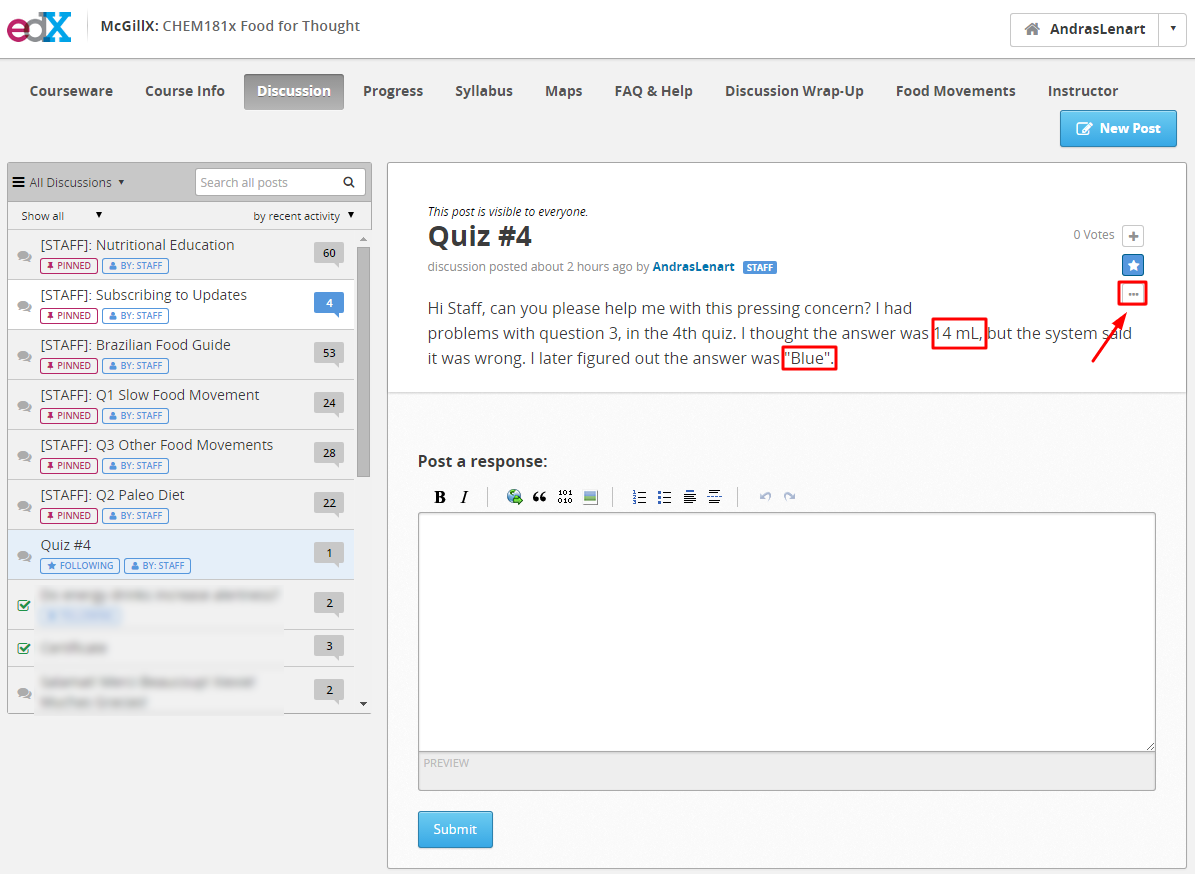
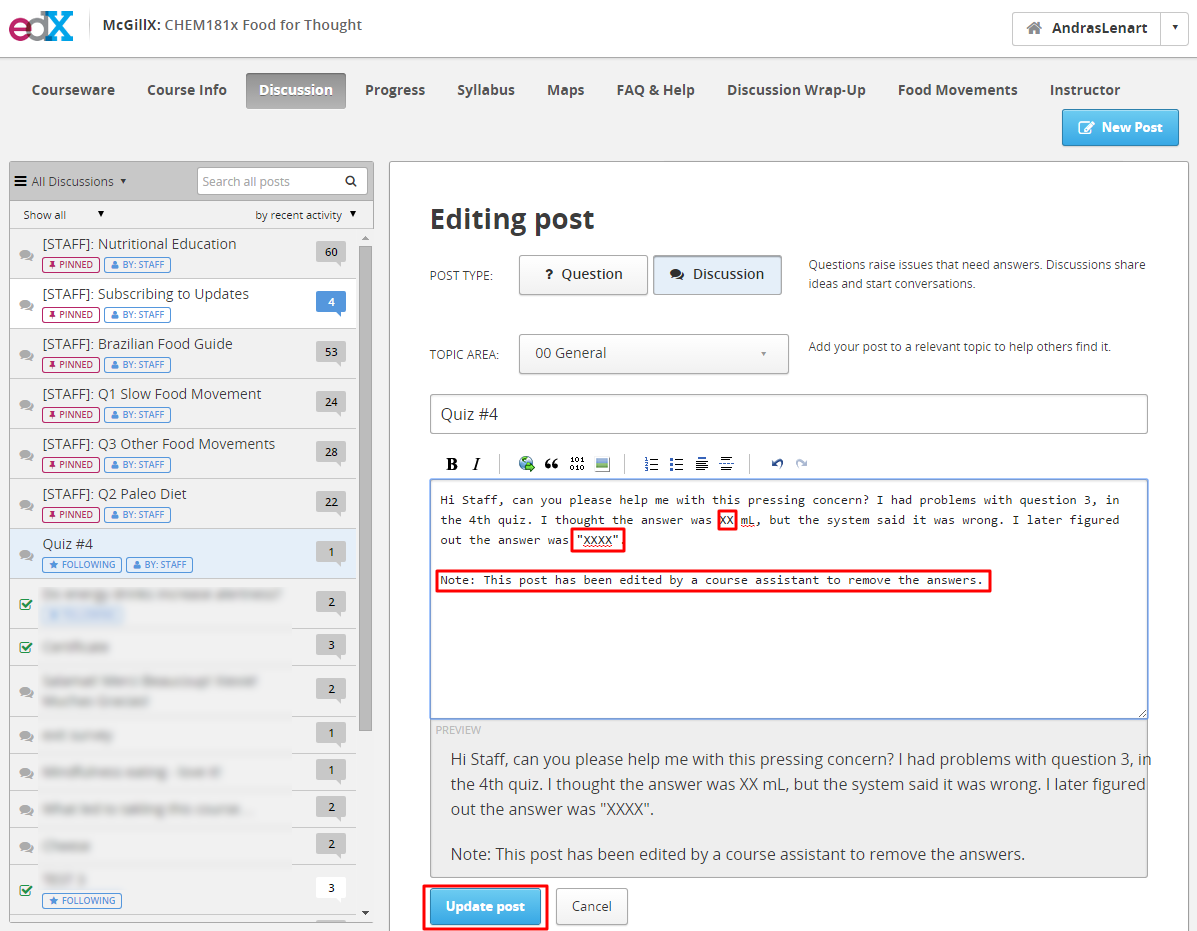
Students may post answers to problem questions in the forum. We encourage students to ask for clarification and ensure their understanding but we ask that students avoid posting the answers to problems. Should students create a post containing answers replace their answers with “XXXX”. Add an explanation for the edit at the bottom of the post.
Note
We encourage students to discuss and collaborate when solving problems , but we discourage the posting of answers.
Students Categorizing Discussion Posts as Discussions or Questions
Students who are new to edX may categorize their posts incorrectly. Remind the students that for their future posts, they have the option of classifying the post as either discussion or question. If their post was incorrectly categorized as a question, mark your response as the answer. Additionally, you can edit their post and change the categorization manually.
UTC Time Zone Due Dates
Students will frequently be confused by the due dates, not realizing that the deadlines are stated in the UTC/GMT time zone. You can suggest they visit use a website such as timeanddate to convert UTC time to their local time. The “Course Info” tab also has a UTC Clock in the side bar that students may find helpful.
We try to avoid issues of confusion by setting soft deadlines, meaning the deadline that appears to students is often many hours in advance of the actual deadline. However, this is not something which we publicize to students.
Problems with Drag and Drop
Students may complain about not being able to complete the drag-and-drop questions on their tablets or phones. Notify them this is a limitation of the edX platform which McGillX has no control over. edX is working towards creating mobile friendly interactions for the future. Advise them to answer the questions on another device.
Problem Submission History
If a student has an issue with a problem/exercise it’s often useful to check the student’s response to question.
To look at a student’s responses to a specific question:
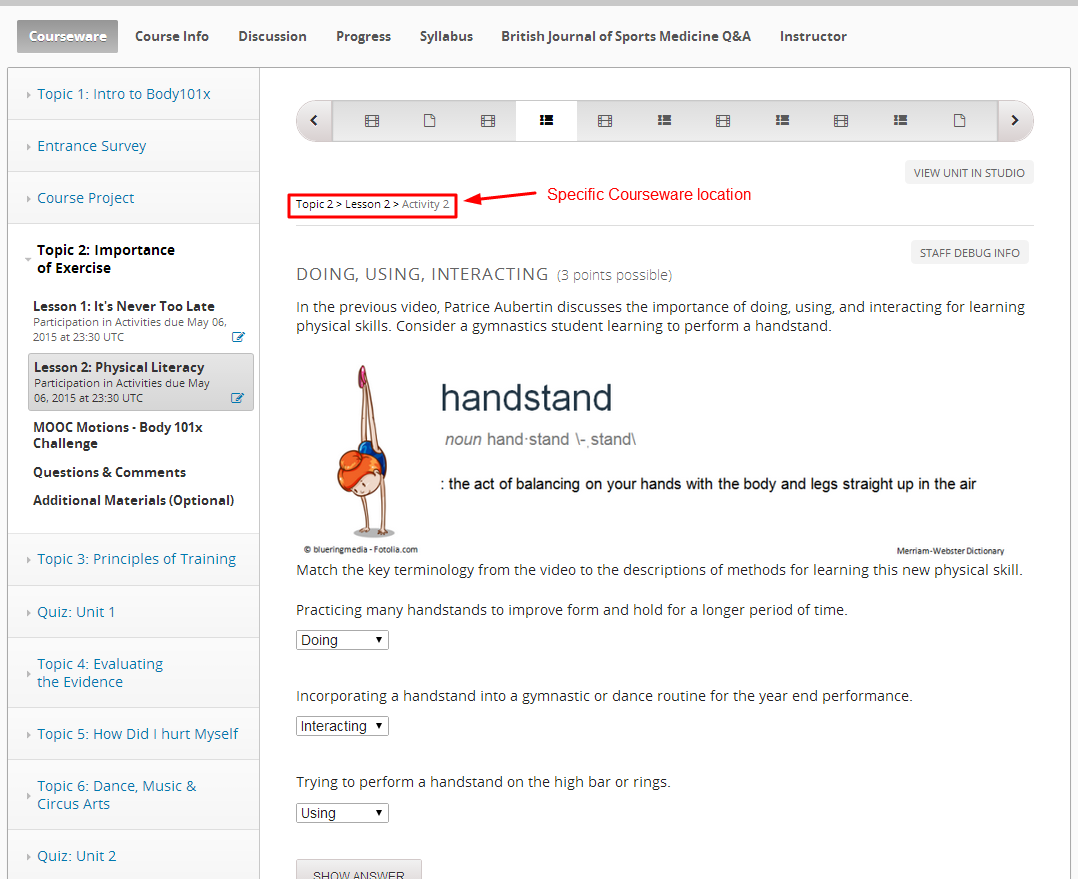
- Find the question location in the courseware.
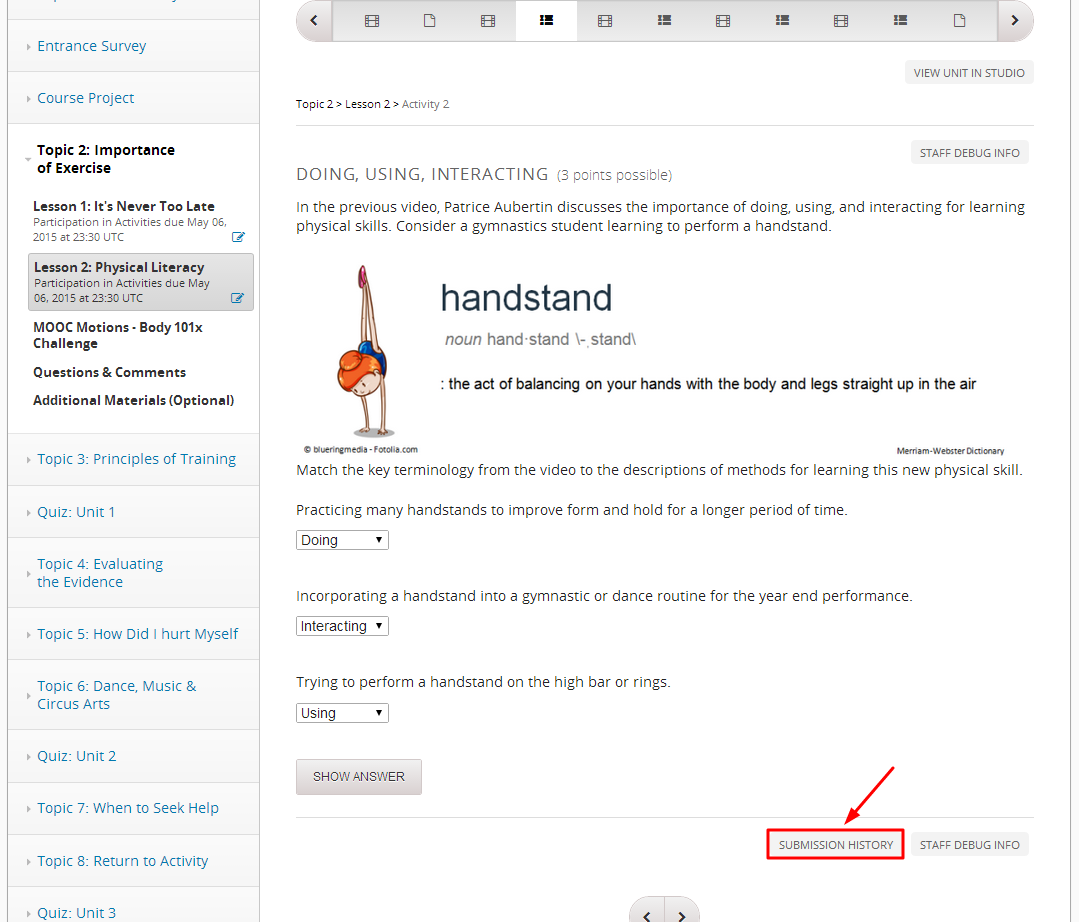
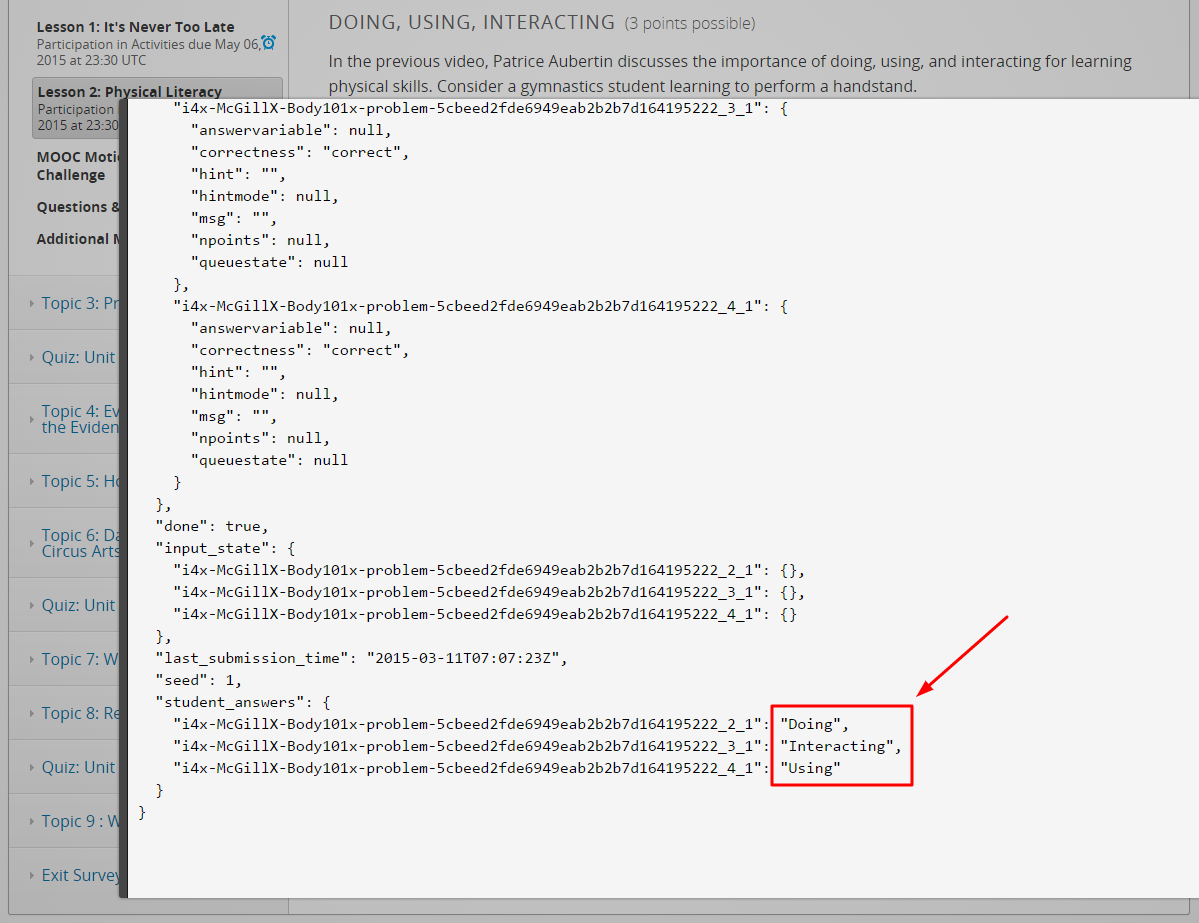
- Click “SUBMISSION HISTORY” and enter the student’s username. You can now scroll through all of the students submissions, and see the location of the question. At times it might be hard to find the answer in the code (which is written in JSON), so keep in mind what the answer should look like.
- Pay attention to the following fields:
- “last_submission_time”: “2015-07-20T19:21:17Z”
- “student_answers”: {“62be225bca294ef09c45b4b92802be71_2_1”: “choice_2”, “62be225bca294ef09c45b4b92802be71_3_1”: “choice_1”}
Note
For questions that have multiple parts, read the string of numbers from right to left the second digit refers to the number of the part. The numbering starts with 2. For example, the first question part would be 62be225bca294ef09c45b4b92802be71_2_1 and the second question part would be 62be225bca294ef09c45b4b92802be71_3_1.
Reset Problem Attempts
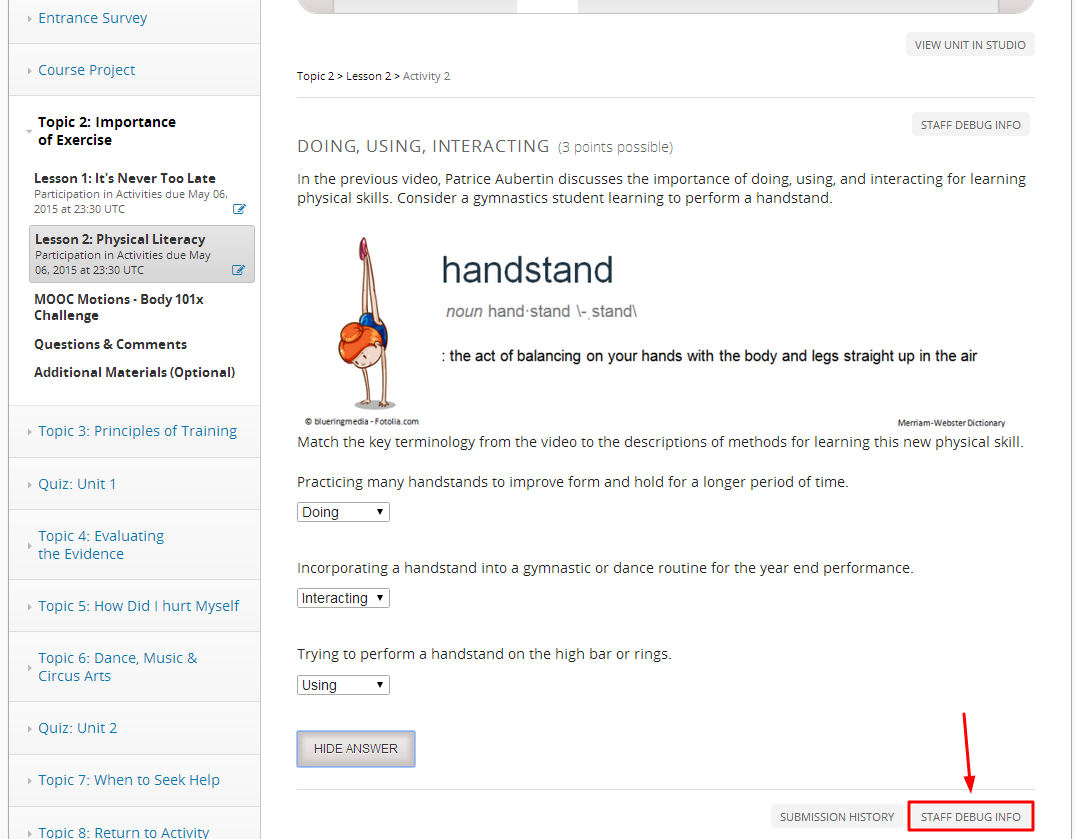
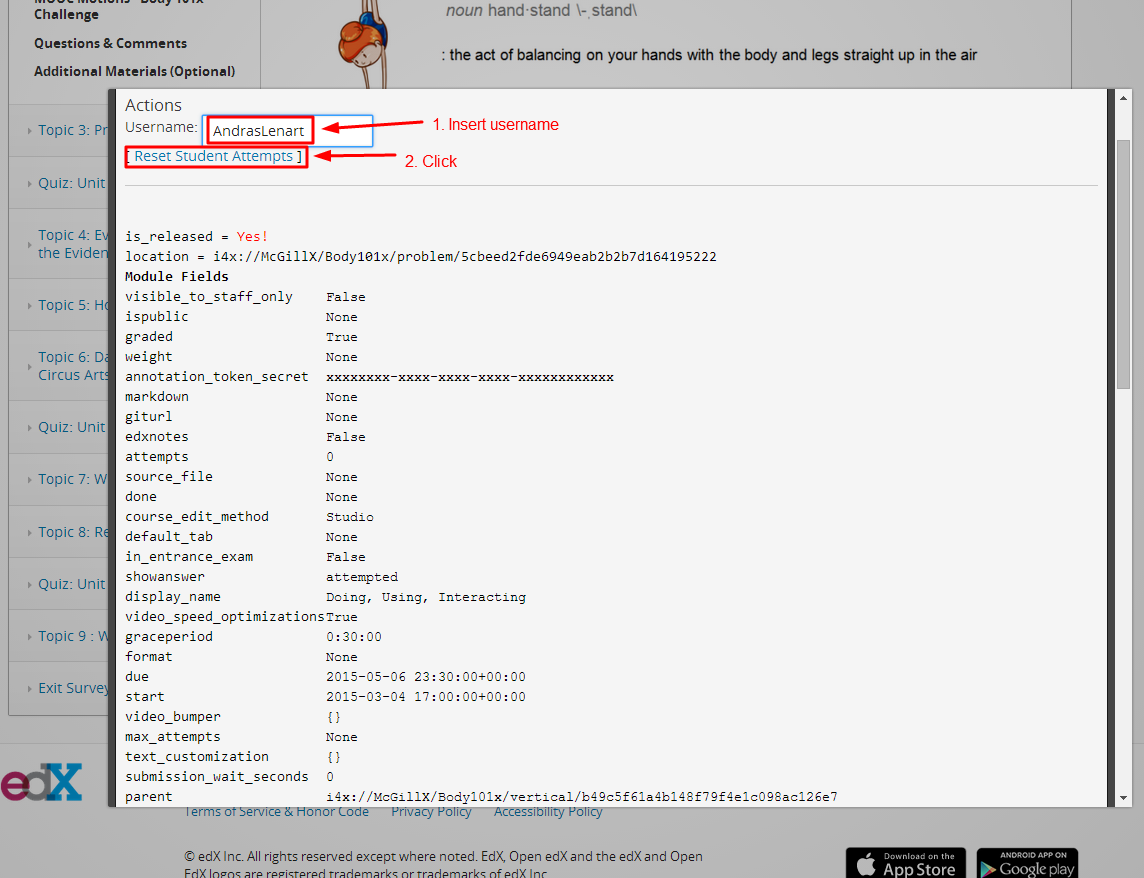
If a student has made a valid complaint about a question, we may reset their answer submissions, find the question in the courseware and click “STAFF DEBUG INFO”. Enter the student’s username, and click “Reset Student Attempts”.
Student Progress Page
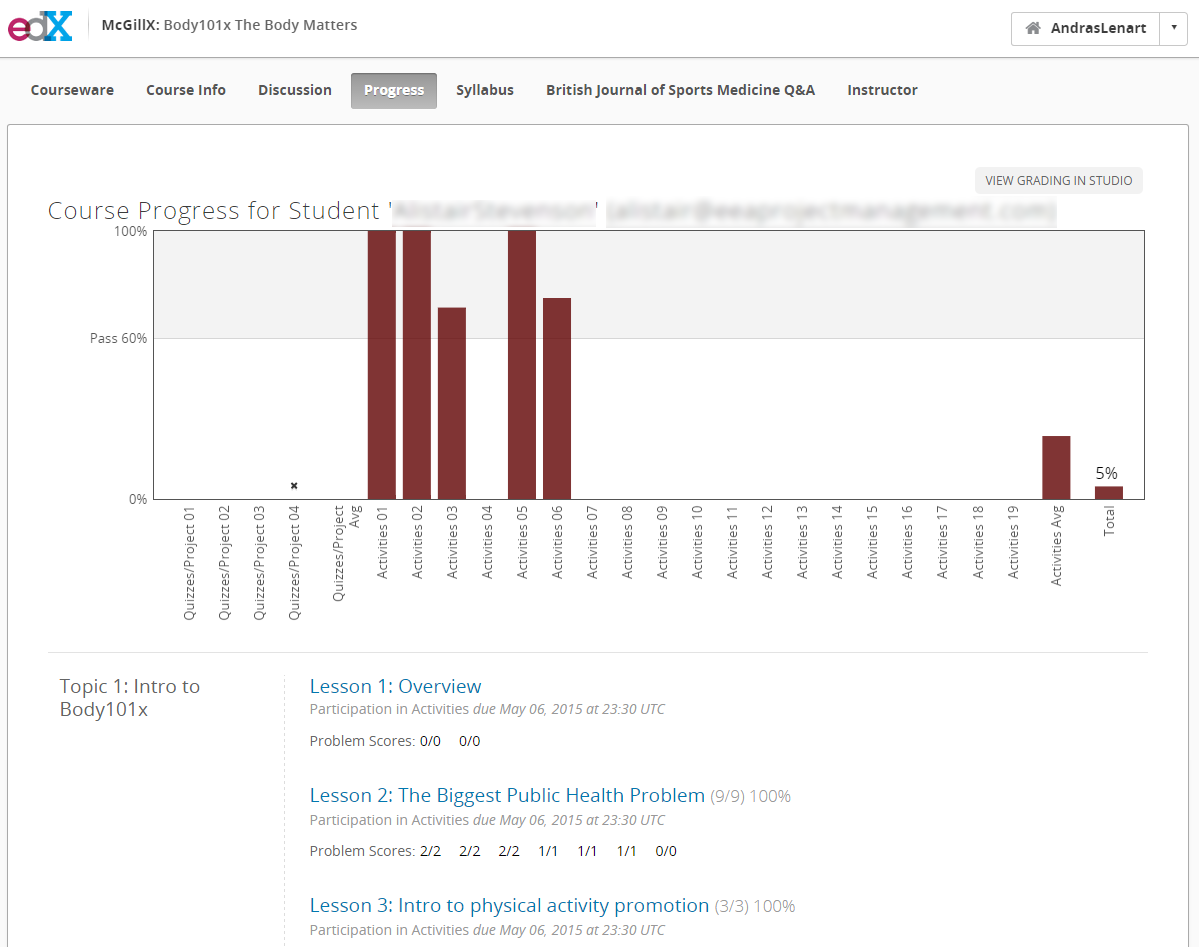
If students are curious about their current progress and grade in the course, refer them to their Progress Page. This is accessible from the main header. To clarify aspects of their progress page it may help to look at the student’s progress page.
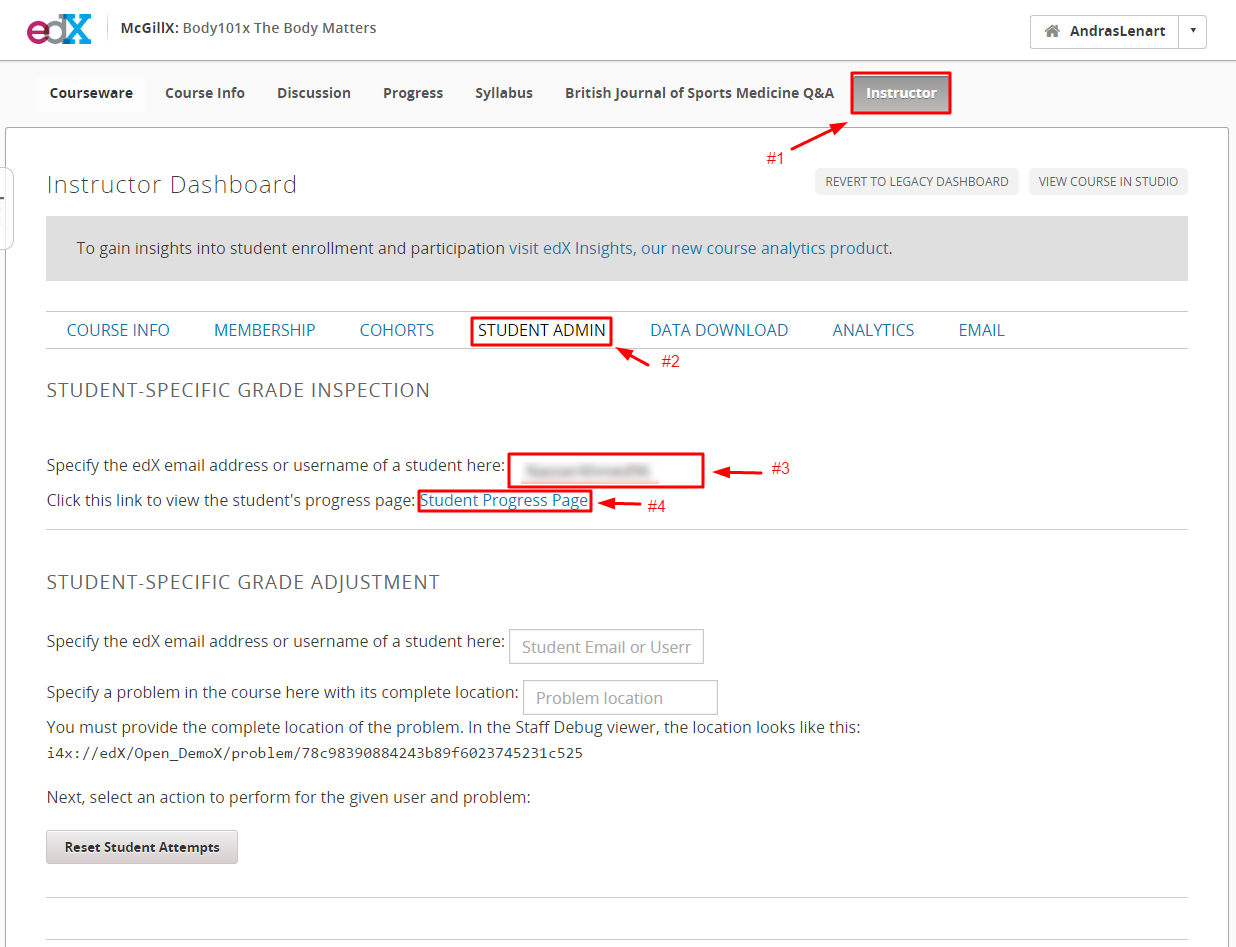
To access a student’s progress page, click the Instructor tab, then the STUDENT ADMIN sub-tab. Insert the student’s email address or username into the box, and click the “Student Progress Page” hyperlink.